

PIXEO has rebuilt the Android app from the ground up. This is not an update to old code; it is a new app currently running on Android 7 and up (iPhone users, yours is coming soon!). We're super excited about all the new features, and to help you get acquainted we built this guide to give you the full tour. If you are new to PIXEO, it will show you how everything works. If you used the old app, it will show you what's changed and what we've added, which is a lot.
One thing to be clear about: PIXEO is not trying to be another photo-sharing app. This is a side hustle for my wife and me that we run out of our kitchen in a suburb outside of Ottawa in Canada. In our app, every photo is tied to a real place you can go and stand. We review every submission, and there are no selfies, no food and no pets. We tried to bake in the tools we wanted when we were doing photography, and are happy to share it with you. Above all we want a tool that is useful for photographers and to build a global community of photogs helping photogs.
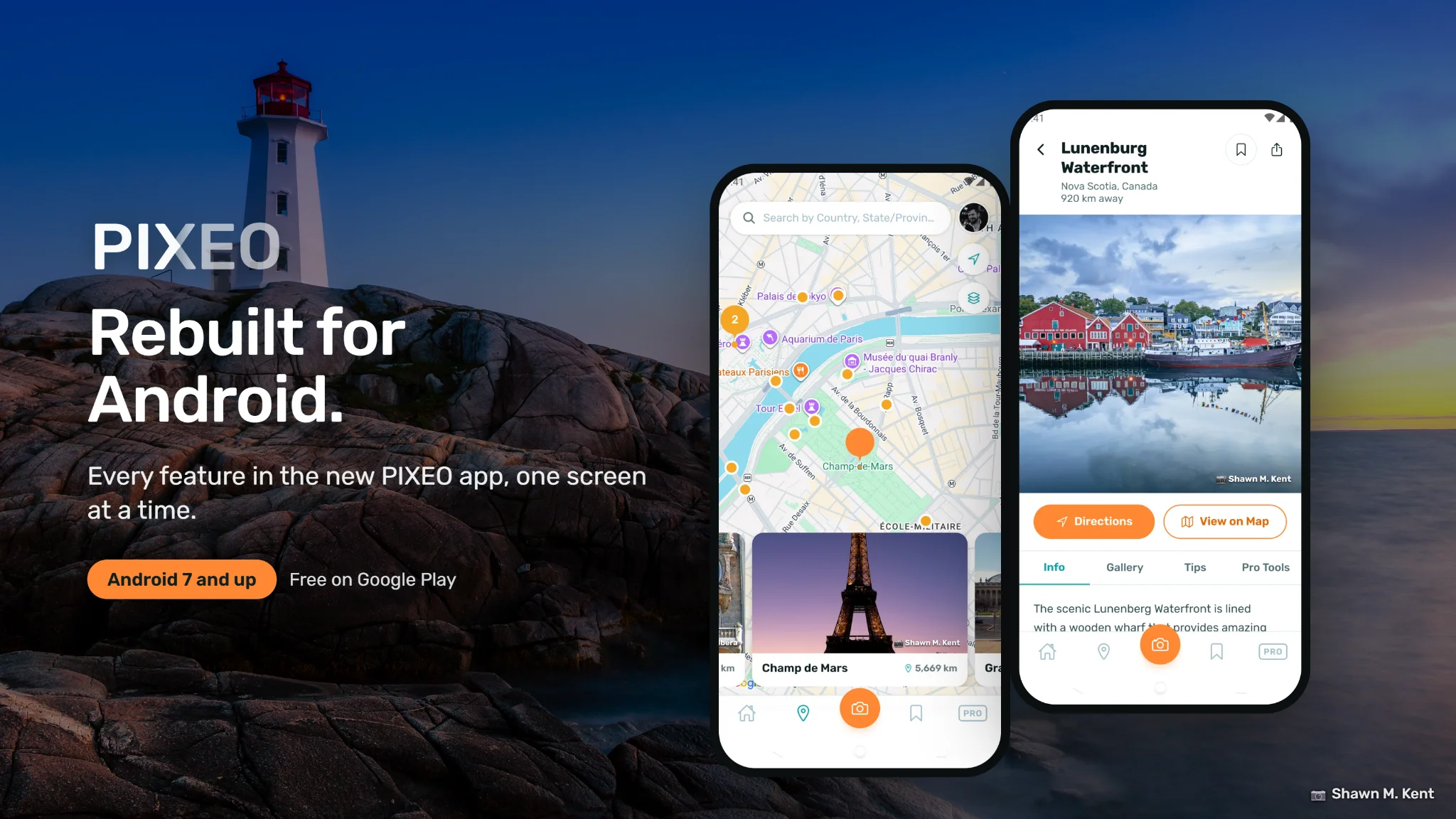
Already have PIXEO installed? Update it from Google Play and sign in once to follow along. If you are a Pro member, your subscription comes back when you sign in.
Getting Around
Everything in the app hangs off the five buttons along the bottom of the screen:
- Home opens the Photo Stream, the new feed of photos from the community.
- Map is the interactive map of every photo spot in the world.
- Camera (the big orange button) adds a new spot.
- Bookmarks holds the spots you have saved for later.
- PRO opens the Pro Tools, which is where all the fun goodies live!
Like most apps we have a notification bell top right to send you notifications and let you know when people interact with your photos. We will be expanding the notification system in a future update giving you full control on what notifications you receive and when.
The Photo Stream
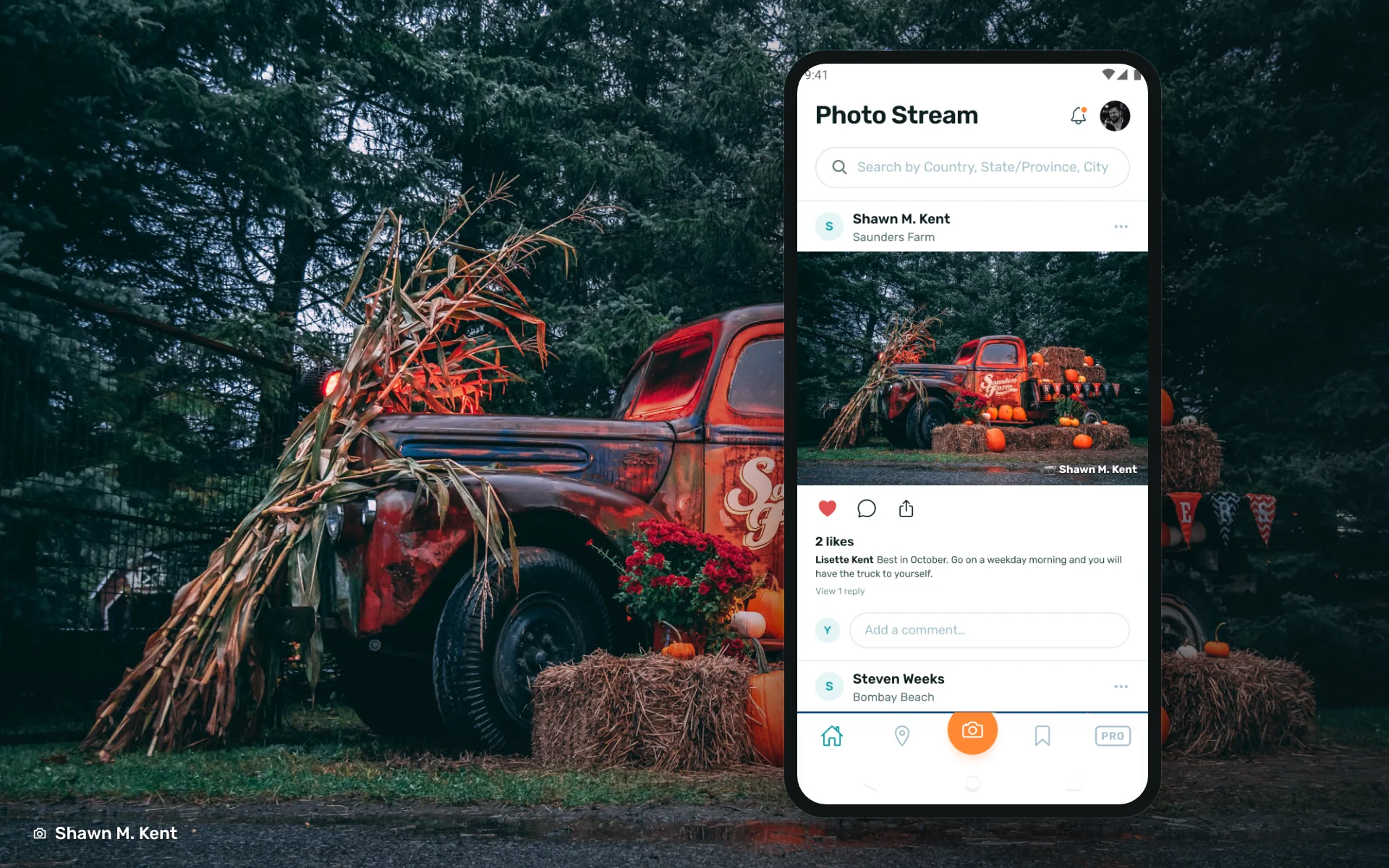
Ahhh, the photo stream. This is somewhat similar to a certain other image sharing app, or at least what it used to be. But minus the pictures of food and fame seekers trying to parlay the app into a career for want of a high school graduation certificate, but I digress. When you open the app you land on the photo stream. These are the latest photos added to the collection and you can like and comment on those photos to your heart's content. We moderate all image submissions against our rules, so you can be sure that the images you see will... let's just say be of interest to photography folks first and foremost. Each post shows the photographer, the spot it was taken at and the photo itself, with the photographer's credit on the image. Let's look at the Photo Stream Tab's features.
Comments and the Community
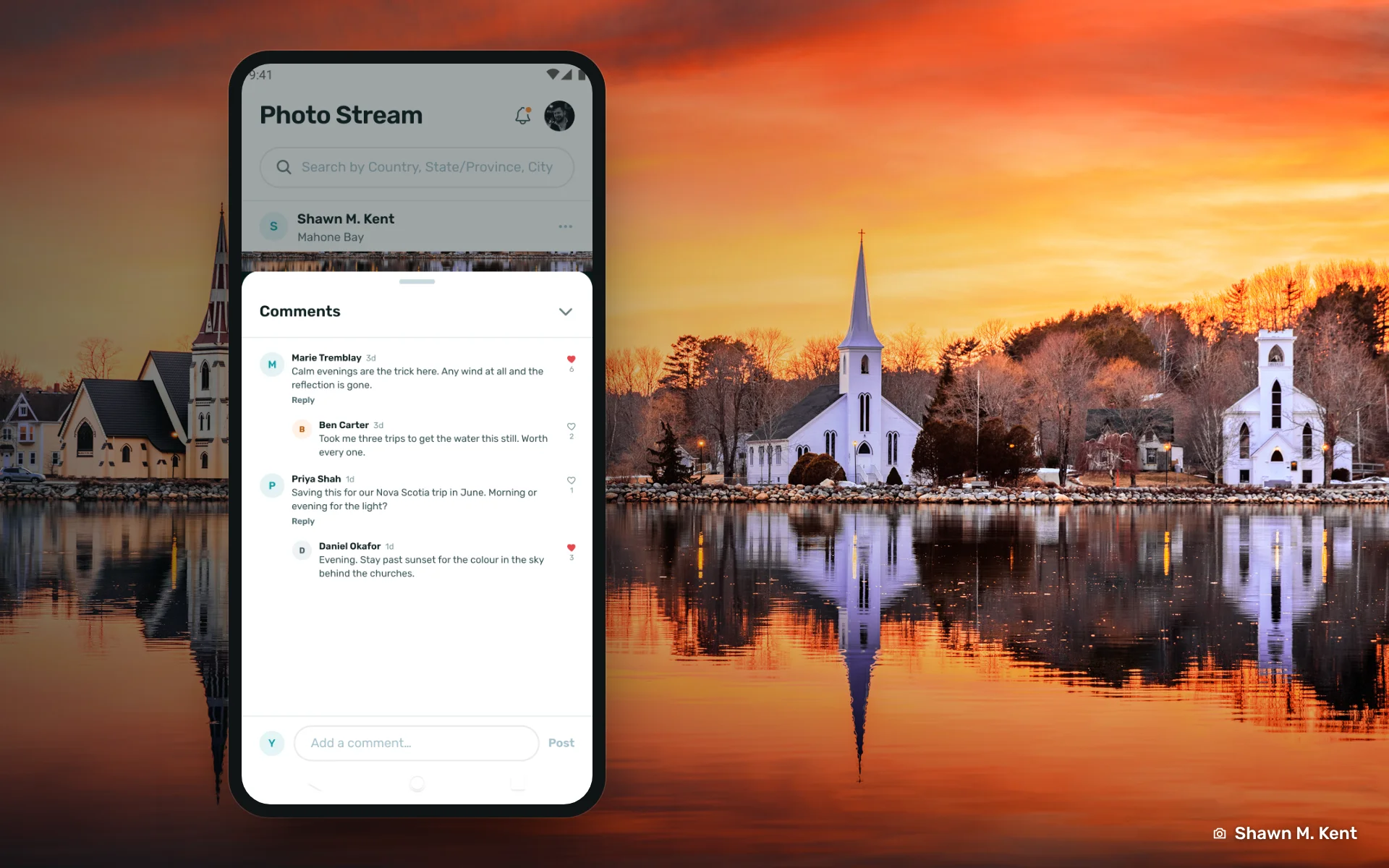
The most common request we had was commenting on photos, and it is finally here. Tap the speech bubble under any photo in the stream and the comments drawer slides up. You can post a comment, reply to someone else's, and like the comments that help you. Replies stay one level deep on purpose, so threads do not turn into arguments.
A few rules keep it civil. You can delete your own comments and tips at any time. You can report any comment or tip that should not be there, and we look at every report. We built this for photographers to help each other, not as a place to talk at your phone, and we intend to keep it that way.
Search Bar
The search bar at the top works by country, state or province, or city. Type “Nova Scotia” or “Paris” and you get transported to that place on the map, which is a great segue to the next section...
The Map
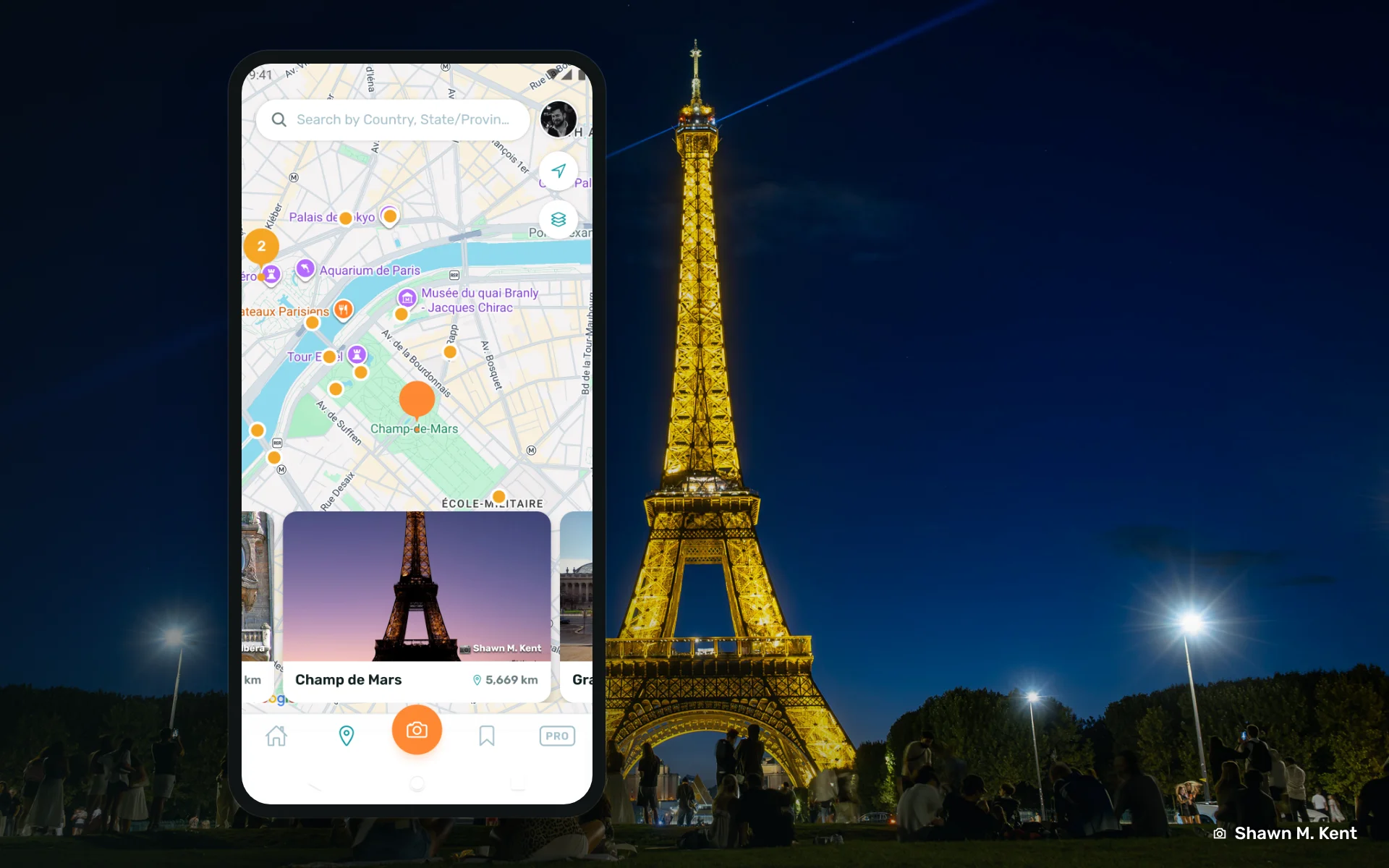
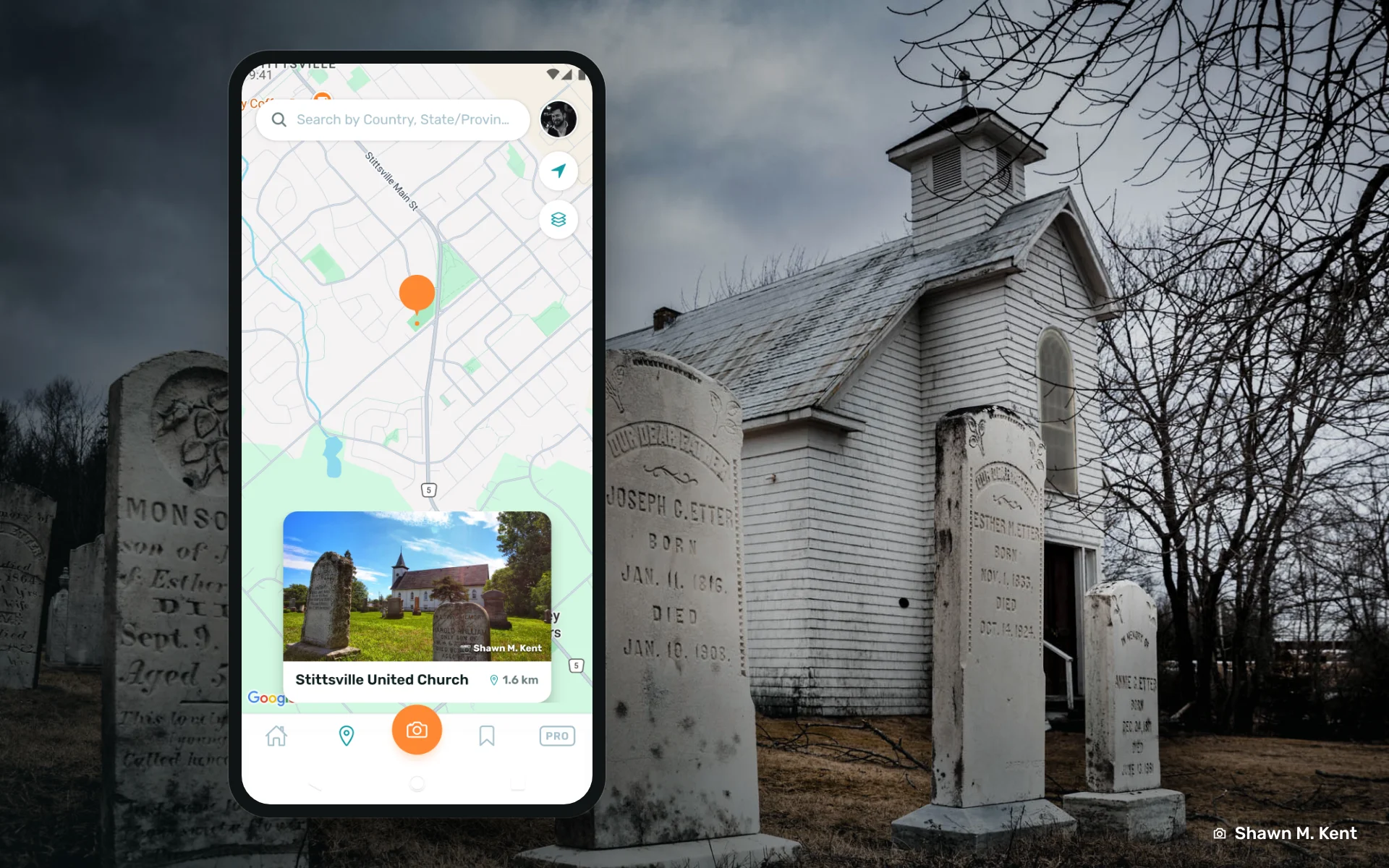
The Map is the heart of PIXEO, same as it has always been. Every orange pin is a photo spot. Where spots are close together, they group into a numbered cluster; tap the cluster or zoom in and they spread out.
Tap any pin and a card slides up with the hero photo, the spot's name and how far away it is. Swipe left and right through the cards to move between nearby spots without hunting for pins. Tap the card to open the spot.
Three controls sit on the right side:
- The blue arrow at the top right jumps the map to your current location.
- The layers button switches the base map (standard or satellite).
- The search bar at the top takes you anywhere in the world by country, region or city.
If you are in a place with only one or two spots, that is a hint. Go shoot something and add it. The map grows one photographer at a time and we love you very much for helping the resource grow.
The Photo Spot Detail Page
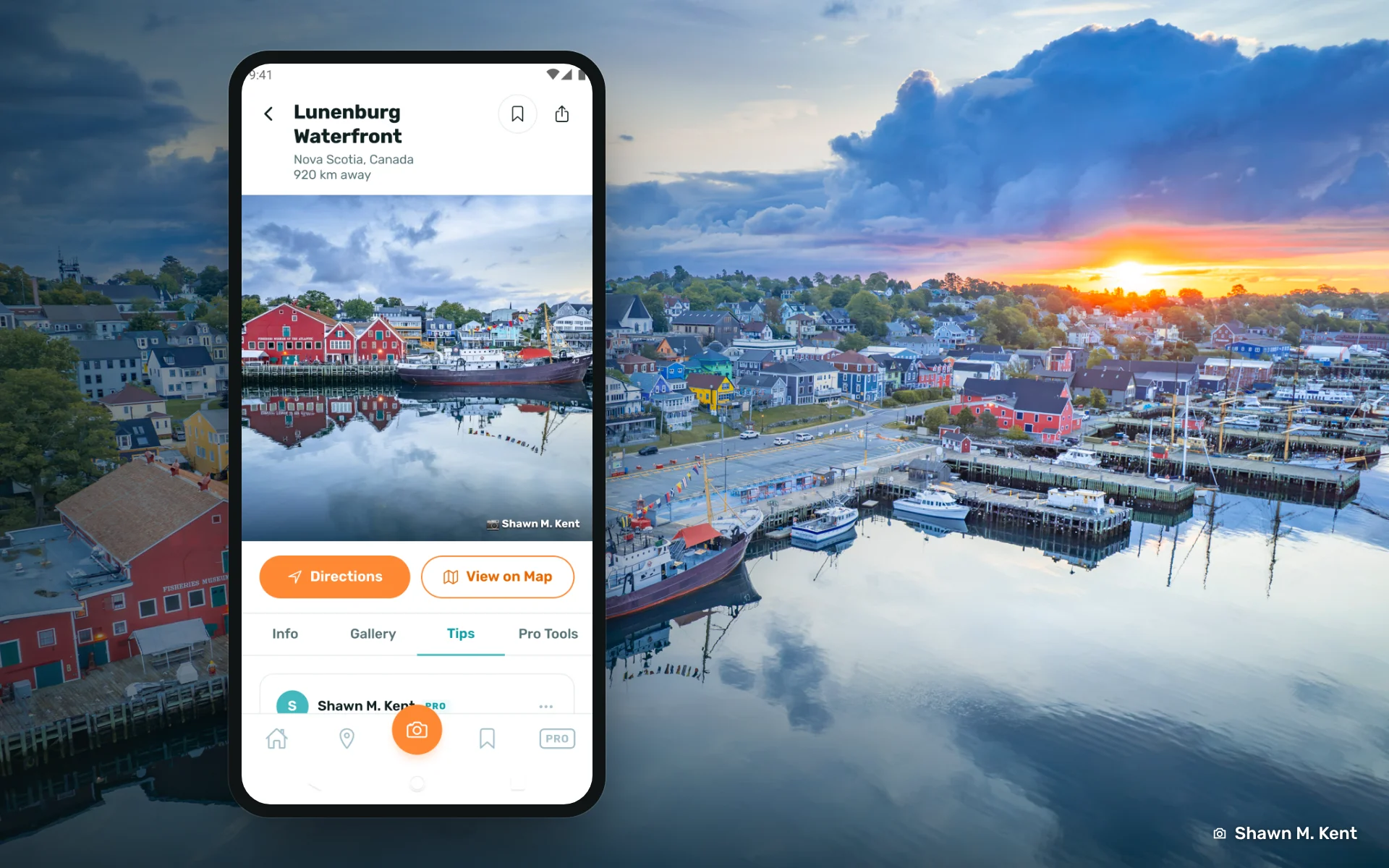
So you find a spot you want to shoot on the map or in the Photo Stream. Tap the photo and you will be transported to that location's detail page. Now, I have to say that we packed 10 pounds of tools into a 5 pound toolbox here so bear with me. There is a tonne of detail and info here, especially for our Pro users. Let's dive in, from the top!
At the top you get the spot's name, where it is and how far away it is from you, then the hero photo. Two buttons sit under the photo: Directions opens Google Maps and tells you how to get there, and View on Map throws you back to the map so you can see where in the world you can find that spot. The bookmark icon allows Pro users to save the location for later. The share icon lets you share the spot with others.
Below that are four tabs: Info, Gallery, Tips and Pro Tools.
Info
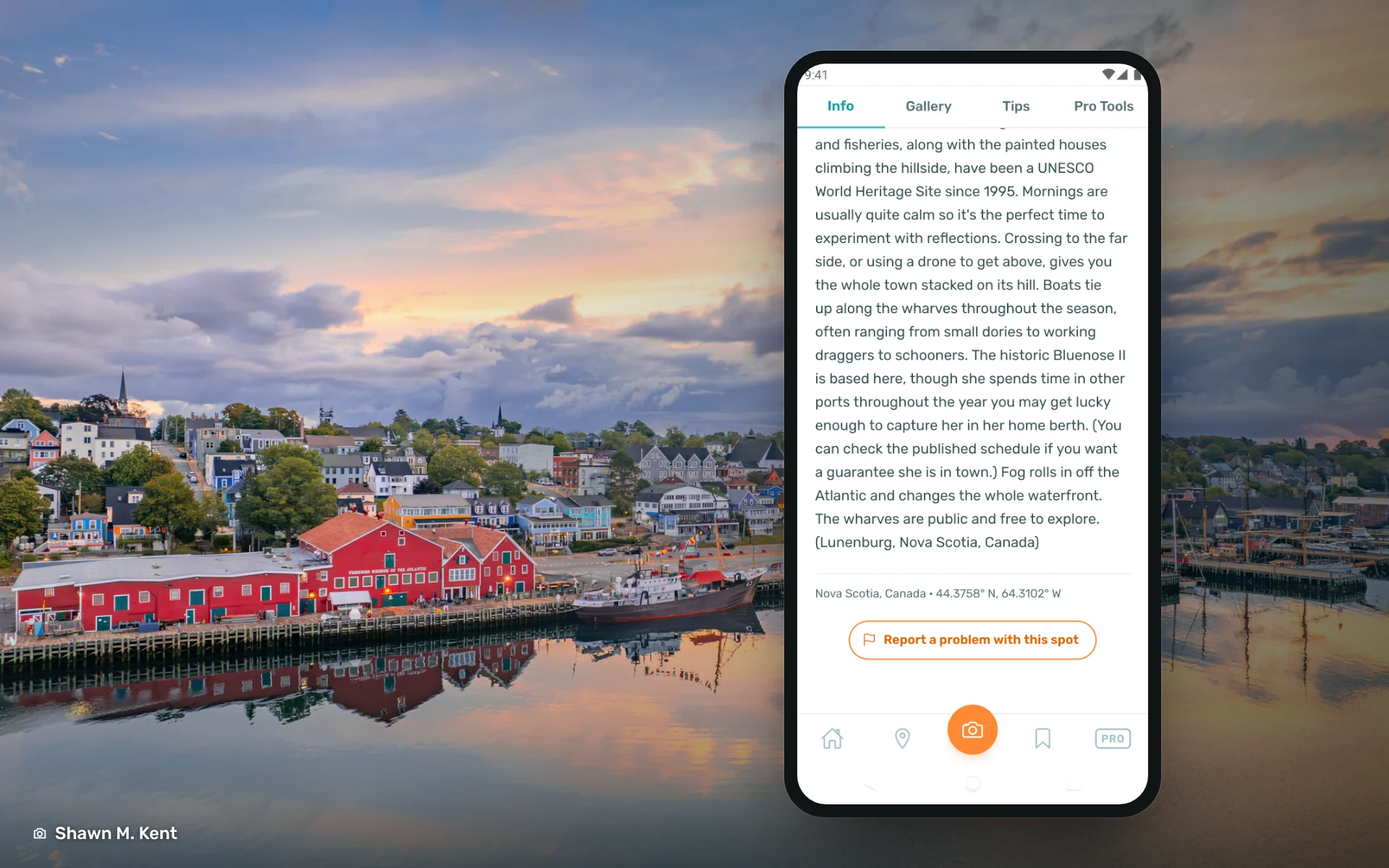
Info is where a spot’s story lives, and it’s the part of PIXEO we’re quietly proudest of. Lisette, PIXEO’s co-founder, writes the descriptions and checks every pin against the map. Each one covers what the place is, a little of its history, what you’ll find when you get there and the practical details that save a wasted trip. Take the Lunenburg Waterfront: it tells you the town has been a UNESCO World Heritage Site since 1995, that mornings are usually calm enough for reflections, that the Bluenose II calls it home but isn’t always in port, and that fog can roll in off the Atlantic and change the whole scene. At the bottom are the exact coordinates and a “Report a problem with this spot” button. If something has changed, like a closed trail, a new fence or a pin in the wrong place, tap it and Lisette will fix it.
Gallery
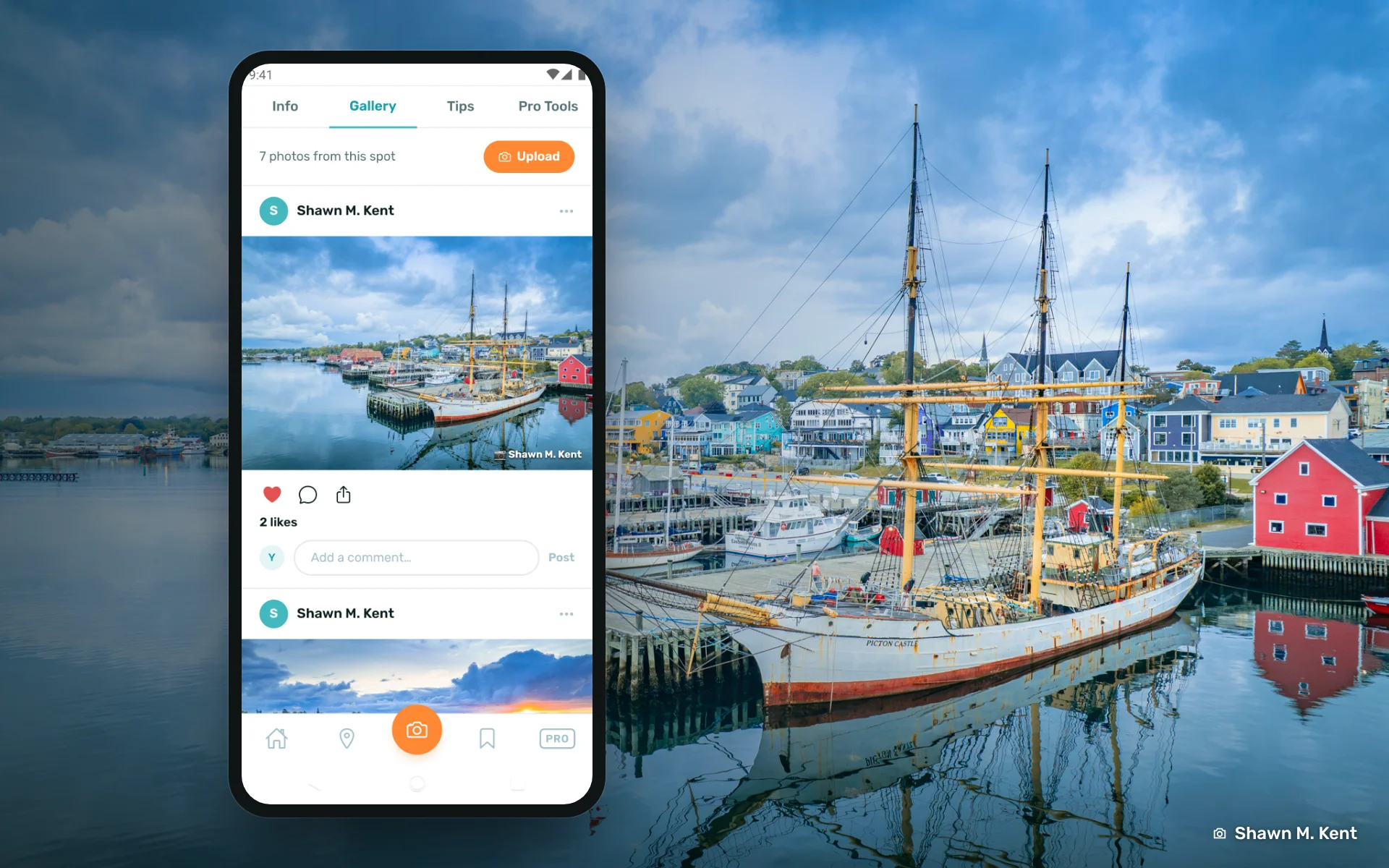
The Gallery is back! When we first launched the app we had the gallery but had to quickly remove it because we hadn't sorted moderation of these submissions yet, and well, there was a photo that got through (what would possess someone to submit a picture of a naked person in an oversized bird nest in a barn I will never know), but we solved it. We can now moderate all submissions and steer clear of the weird, wild and wonderful, not that we're against that kind of photography, but Sir, this is a Wendy's.
So a gallery now holds every photo of the spot, from every photographer that ever submitted one, with an Upload button to add your own. We call the main image on a spot the "Hero" image. This photo sits at the top of the location details and is the one with the most likes, so each spot is a quiet little photo contest. If a spot near you already has a photo, go shoot it anyway. Shoot it better, get the likes, and yours becomes the hero shot.
Tips
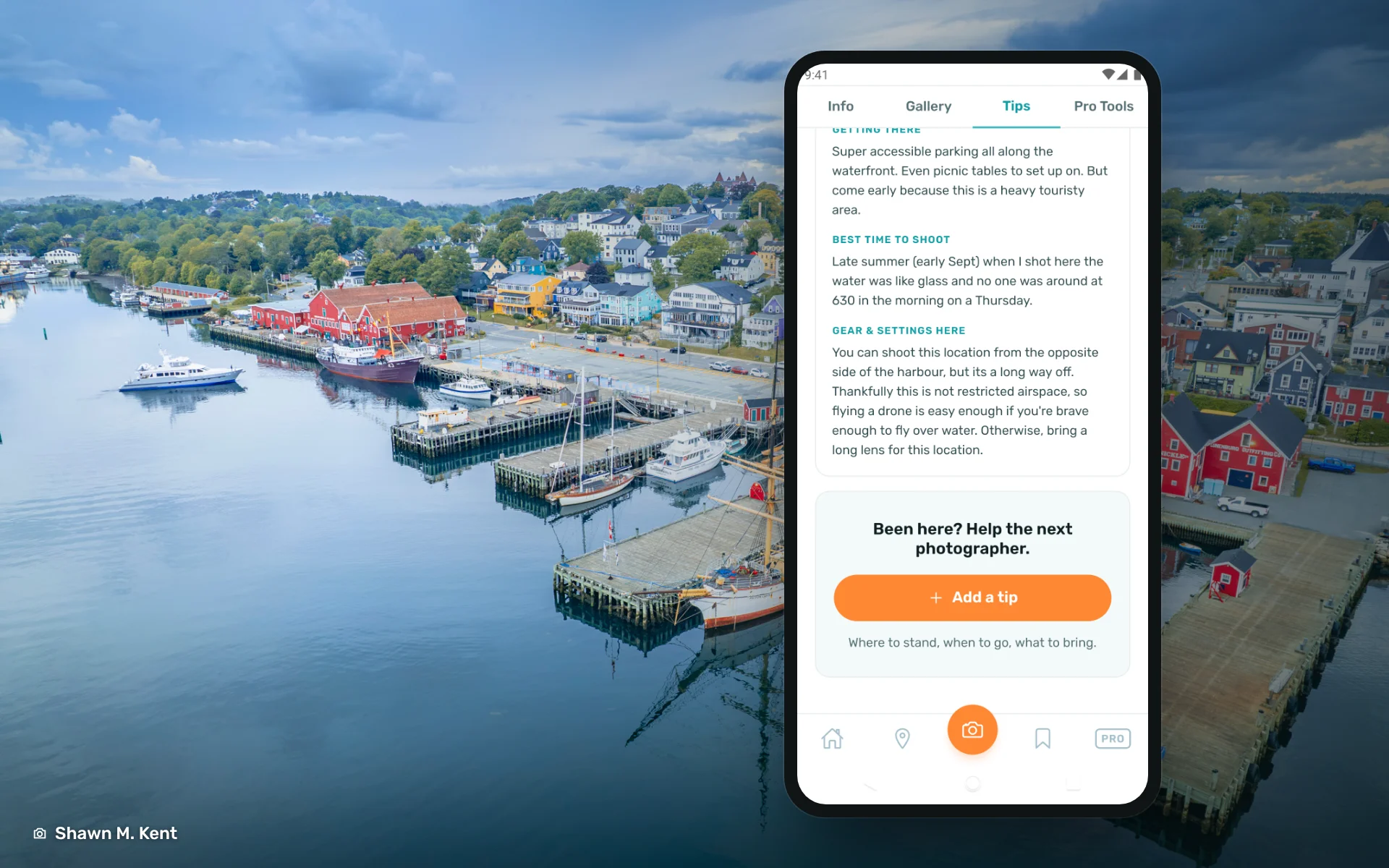
Tips is where photographers leave notes for the next photographer. Each tip is filed under a topic: Getting There, Best Time to Shoot, Gear and Settings, Rules and Hazards, or Anything Else Worth Knowing. The example above is my own tip for the Lunenburg waterfront: where to park, when the water was glass, and that the harbour is not restricted airspace if you want to fly a drone. Tap Add a tip at the bottom to leave yours.
Pro Tools
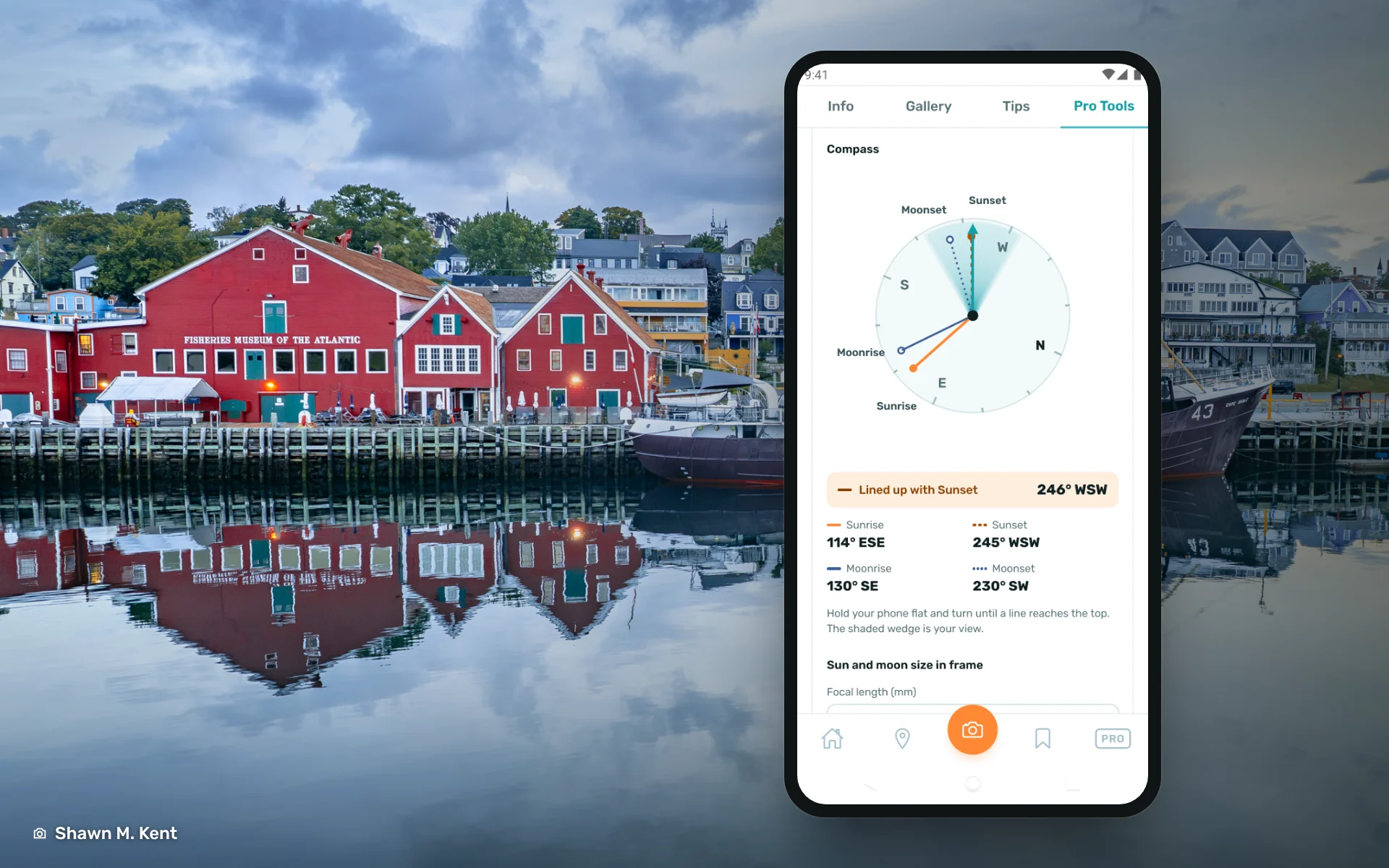
We're gonna skip Pro Tools for a minute because there are a lot of them and they need their own section. We'll cover them later in this article.
Adding a Spot (the Camera Button)
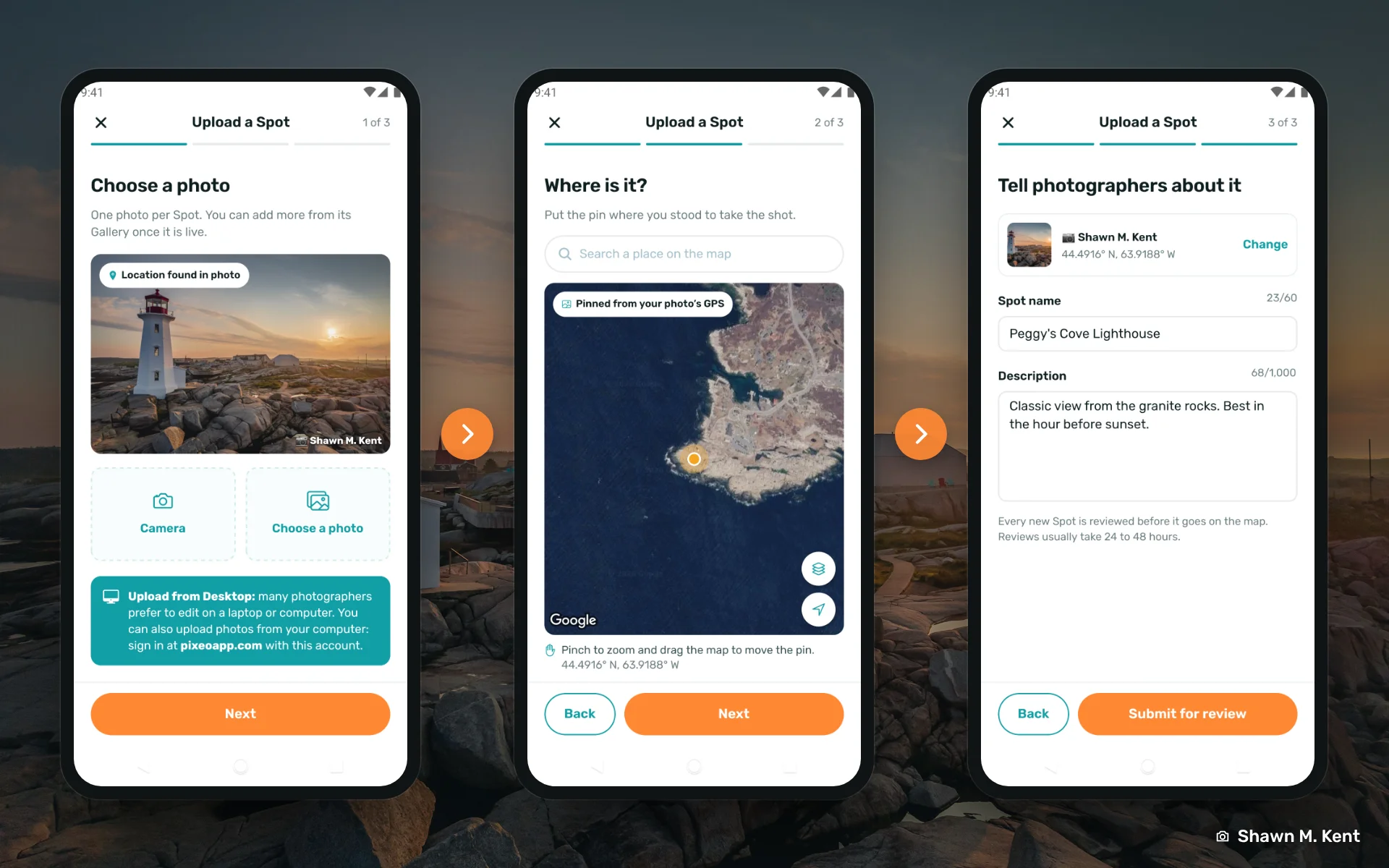
Tap the orange camera button on the bottom bar and the Upload a Spot flow walks you through three steps. The first is the photo: take one with the camera or pick one from your phone. One photo per new spot; once the spot is live you can add more from its Gallery.
Many of us edit on a computer, not a phone, so you do not have to upload from the app at all. Sign in at pixeoapp.com with the same account and upload from your desktop. It goes to the same place.
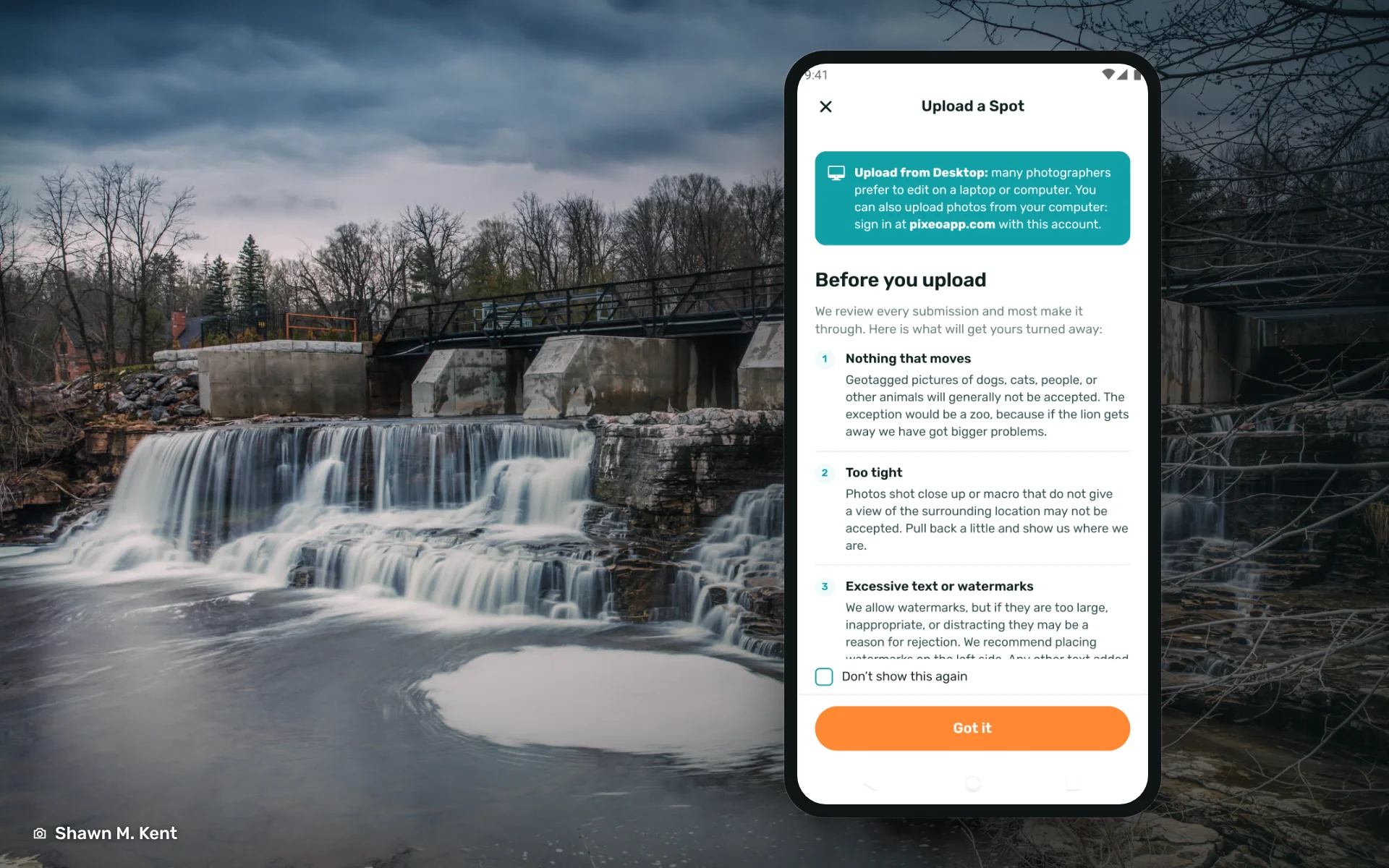
Before your first upload, the app shows you what gets a photo turned away. We review every submission and most make it through, but a few things do not:
• Nothing that moves. Geotagged pictures of dogs, cats, people or other animals are generally not accepted. The exception is a zoo, because if the lion gets away we have bigger problems.
• Too tight. Close-ups and macro shots that do not show the surrounding location may be turned away. Pull back a little and show us where we are.
• Excessive text or watermarks. Watermarks are fine. Big, distracting or inappropriate ones are not, and we suggest keeping them to the left side of the frame.
The point of PIXEO is that every photo marks a place another photographer can go and stand. Keep that in mind and your spot will sail through.
Bookmarks
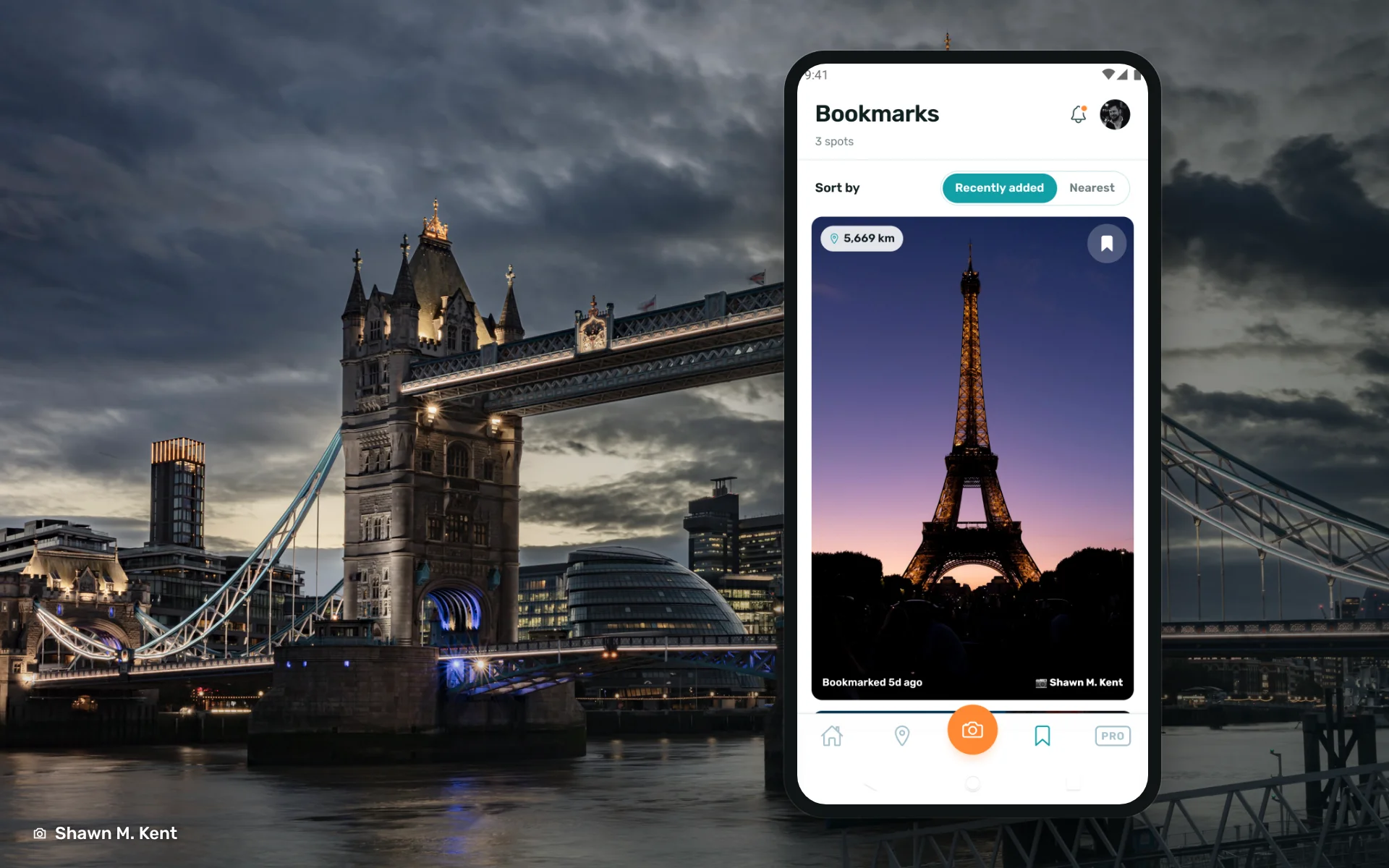
Tap the bookmark icon on any spot and it lands in Bookmarks, the fourth button on the bottom bar. Each saved spot shows as a full-width card with the distance to it and when you saved it. Sort by Recently added when you are planning, or by Nearest when you are out with the camera and want to know what is close.
User Profiles
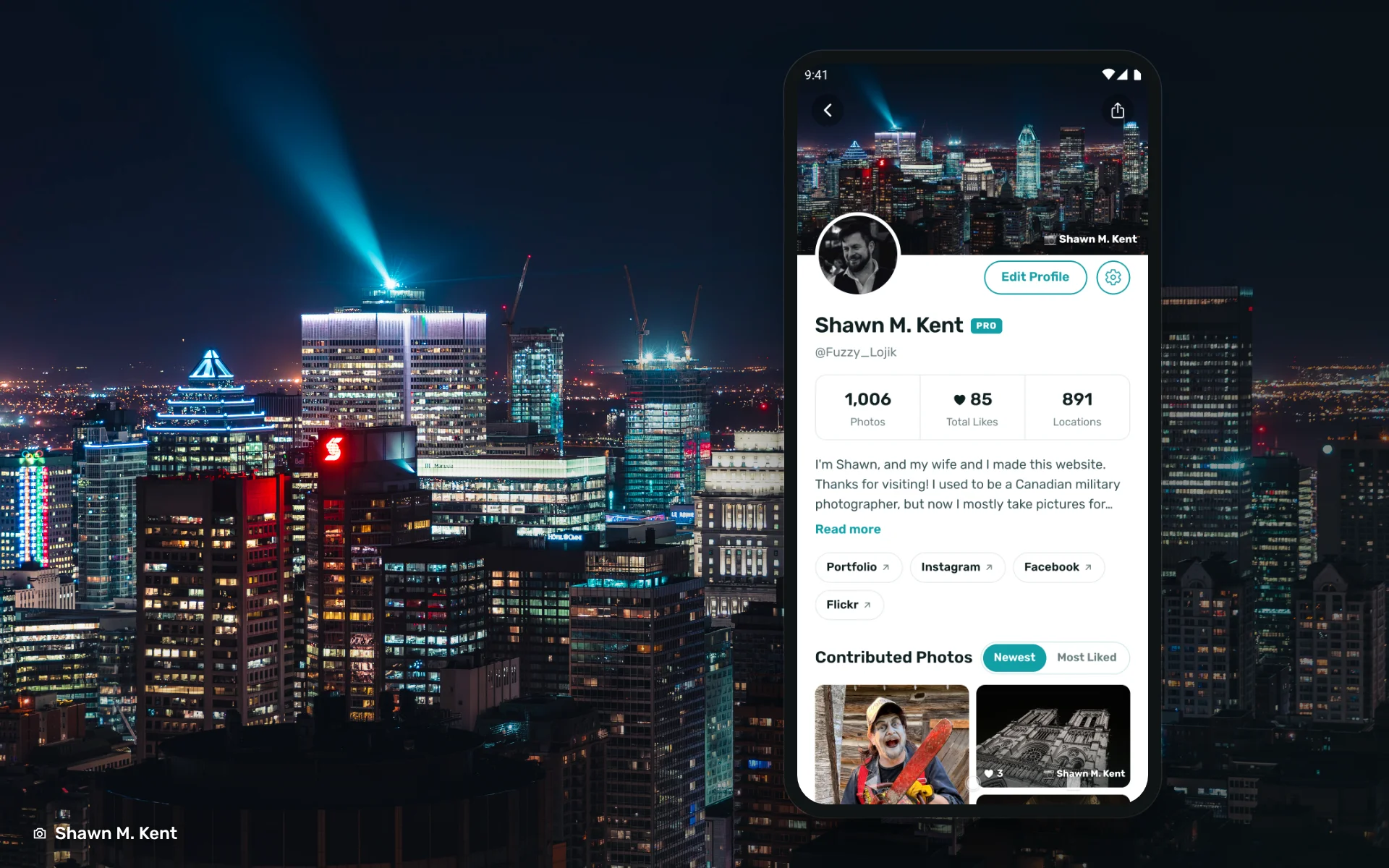
Your avatar at the top right opens your profile. It shows your photo count, total likes and the number of locations you have contributed, your bio and links to your portfolio, Instagram, Facebook or Flickr. Below that is every photo you have added, sorted by newest or most liked. Edit Profile changes any of it, and the gear icon opens your account settings.
Pro Tools
This is the part I am proudest of. For years I carried three or four apps to plan a shoot: one for the weather, one for sun times, one for the compass, a calculator for the rest. The new Pro Tools tab puts all of it on the spot page, so the answer to “is it worth driving out tonight” is one tap away. These are the tools I use for my own photos, and they decided more than one shot in the Paris guide.
Open any spot and tap Pro Tools. Everything below is calculated for that spot's exact coordinates and your local time.
Sky colour forecast and golden hour
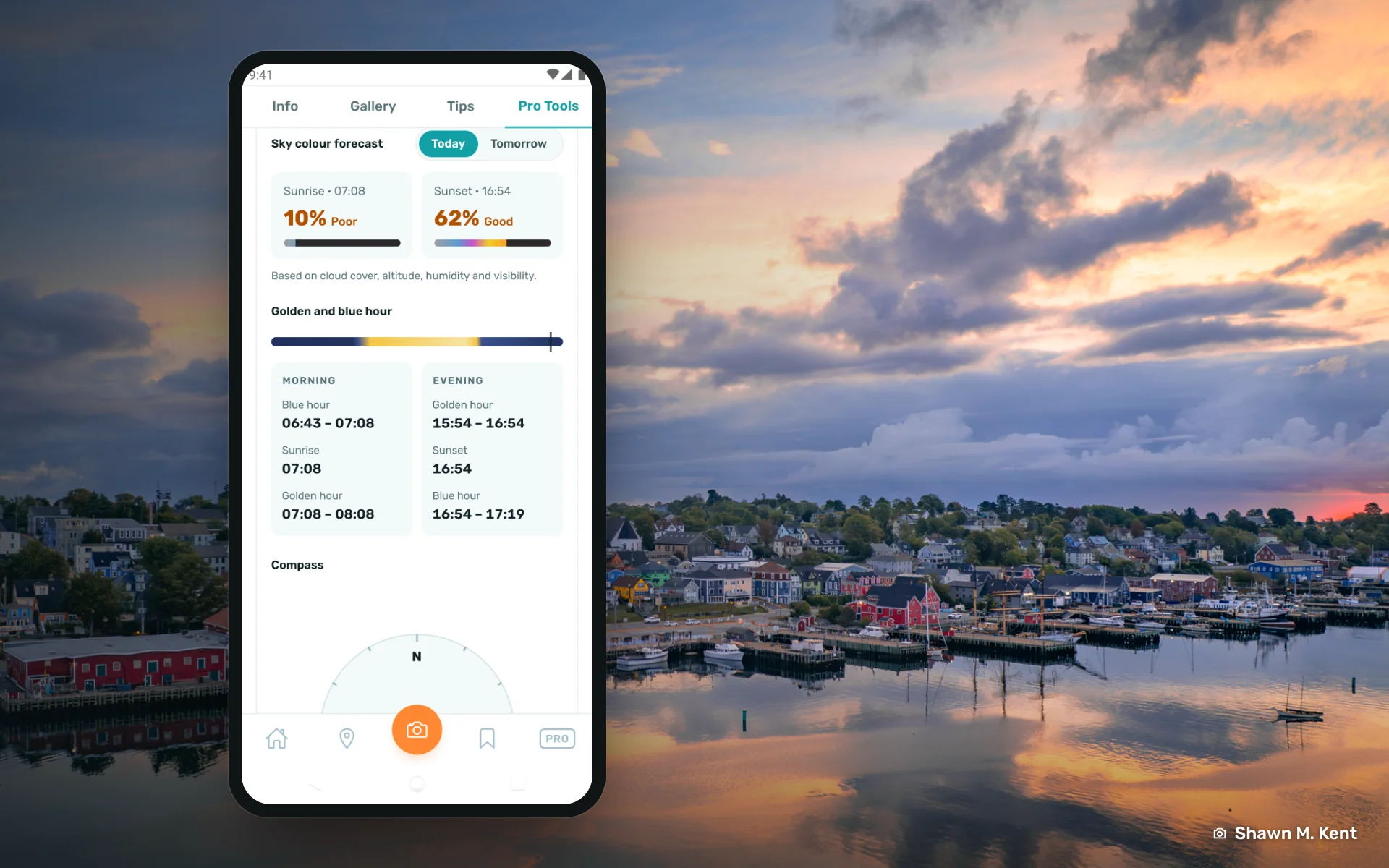
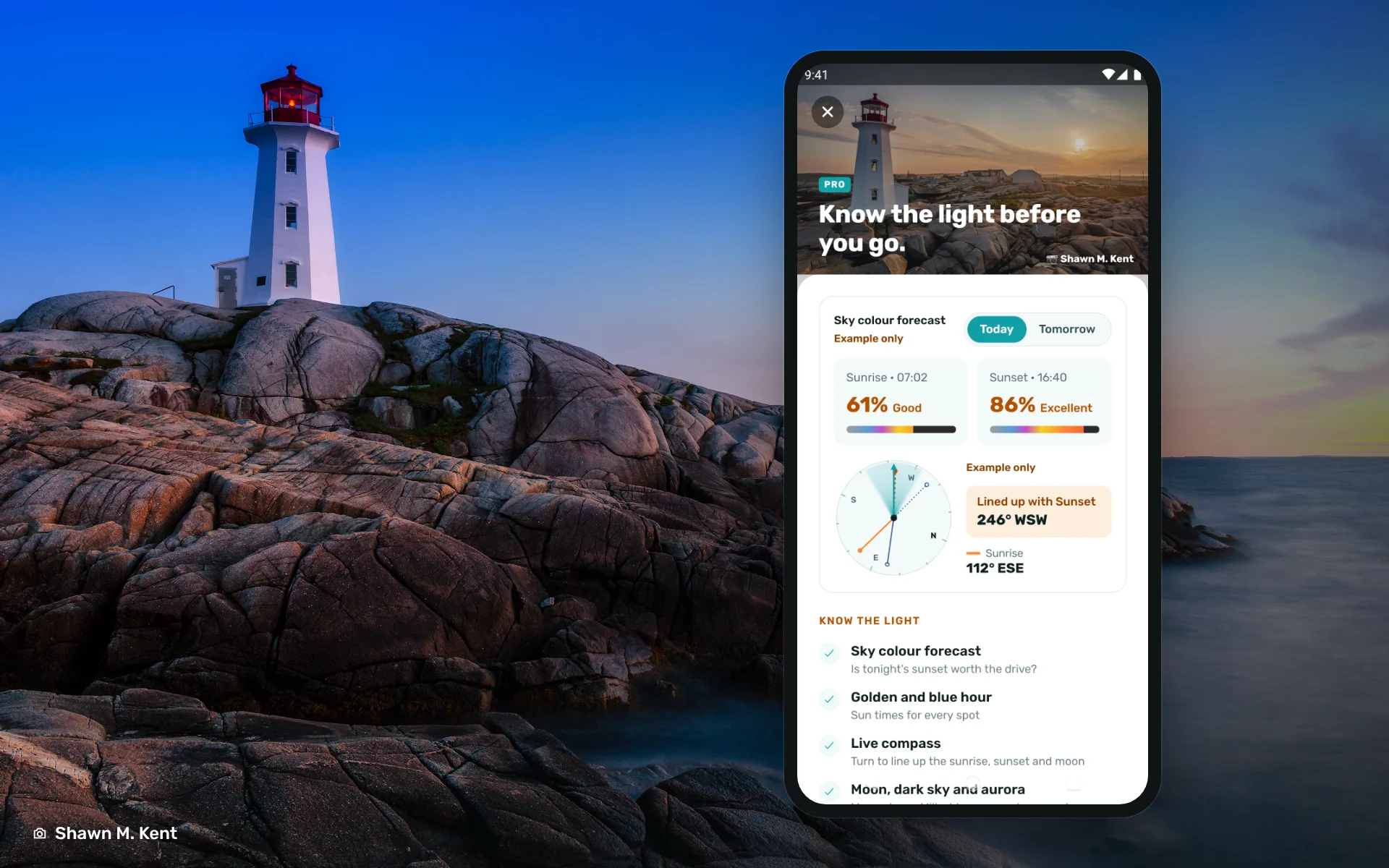
The first card answers the big question: will the sky do anything? You get a percentage and a rating for both sunrise and sunset, today and tomorrow, based on cloud cover, altitude, humidity and visibility. A 10% Poor means stay home. A 70% Good means start packing.
Under it is the golden and blue hour timeline for the day, with the exact times for morning blue hour, sunrise, morning golden hour, evening golden hour, sunset and evening blue hour. The marker shows where you are in the day right now.
Compass
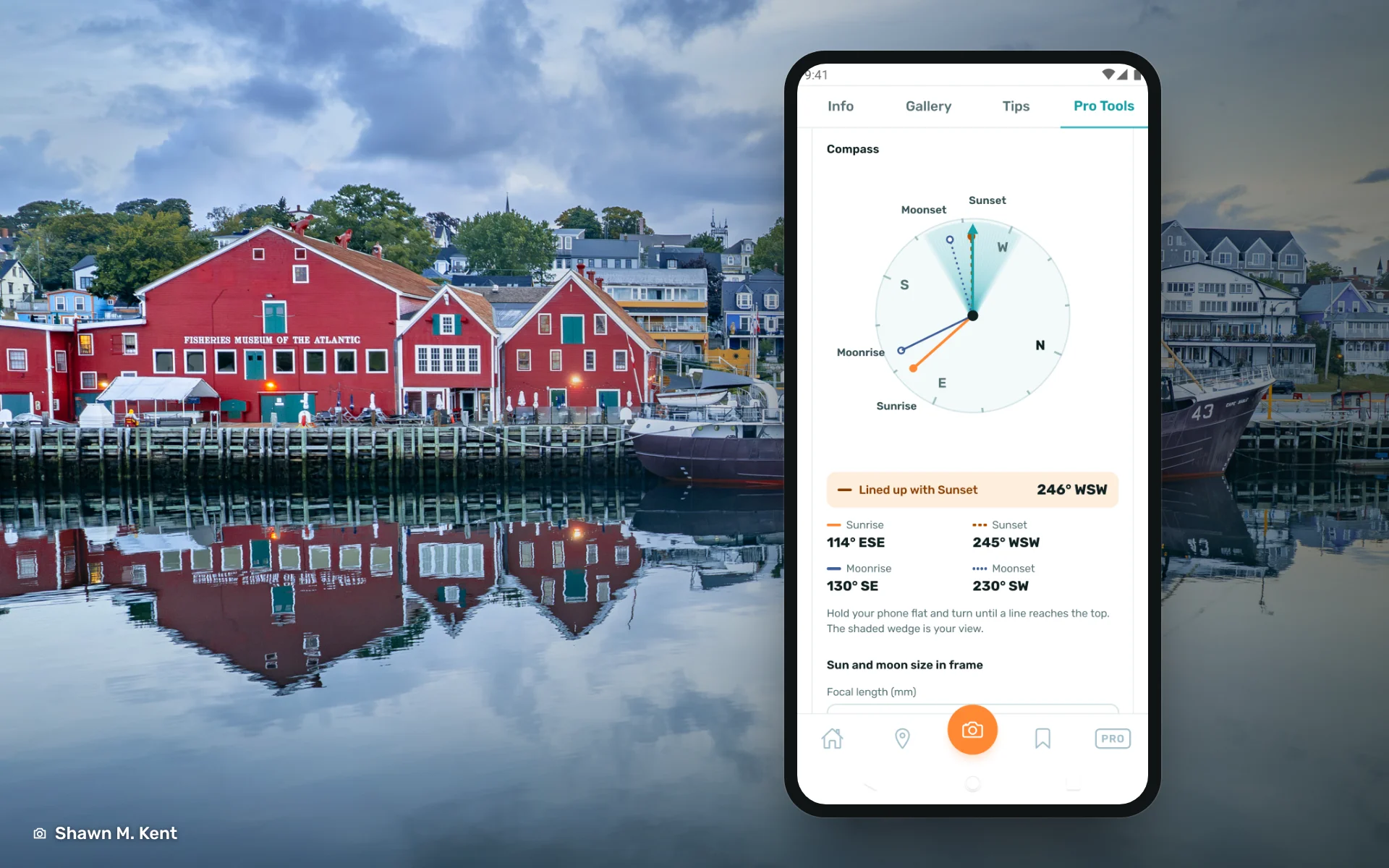
The compass draws the sunrise, sunset, moonrise and moonset directions as lines from the spot, with the bearings listed underneath. Hold the phone flat and turn, and the dial turns with you while your own heading stays at the top. The shaded wedge is your field of view. When you are pointed at the sunset line, the app tells you: Lined up with Sunset. No more guessing which side of the lighthouse the sun will drop behind.
Sun and Moon size, Dark Sky, and Aurora Prediction
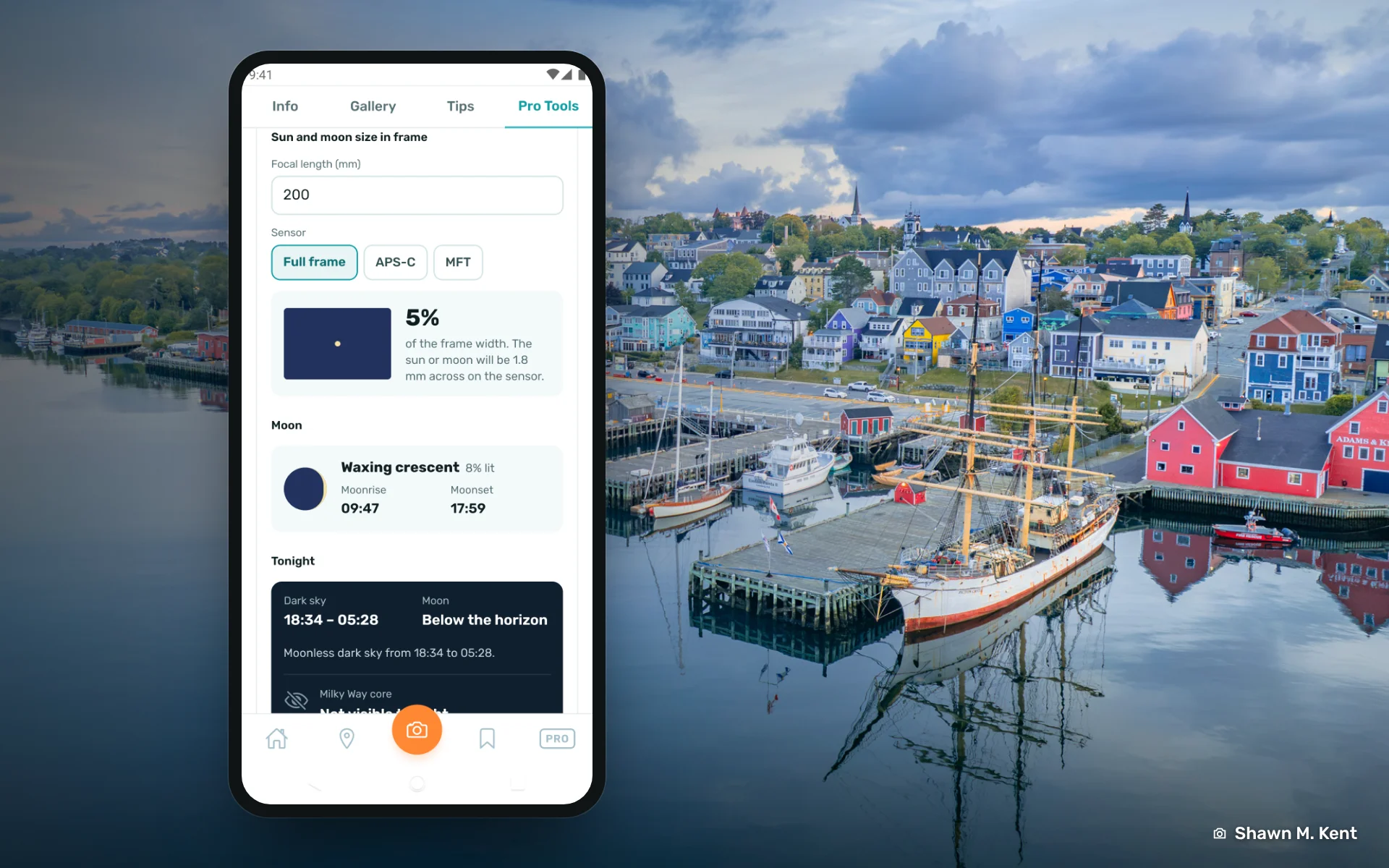
Type in your focal length and pick your sensor (full frame, APS-C or Micro Four Thirds) and the app shows how much of your frame the sun or moon will fill, as a percentage of the width and in millimetres on the sensor. At 200 mm on full frame the moon is about 5% of the frame width. If you want it to look big, this tells you how long a lens you really need before you leave the house.
The moon card gives tonight's phase, how much of it is lit, and the moonrise and moonset times. Below it, Tonight tells you when the sky is dark and moonless, whether the Milky Way core is visible from this spot, and the aurora outlook. For night shooters this card alone is worth the subscription.
Weather
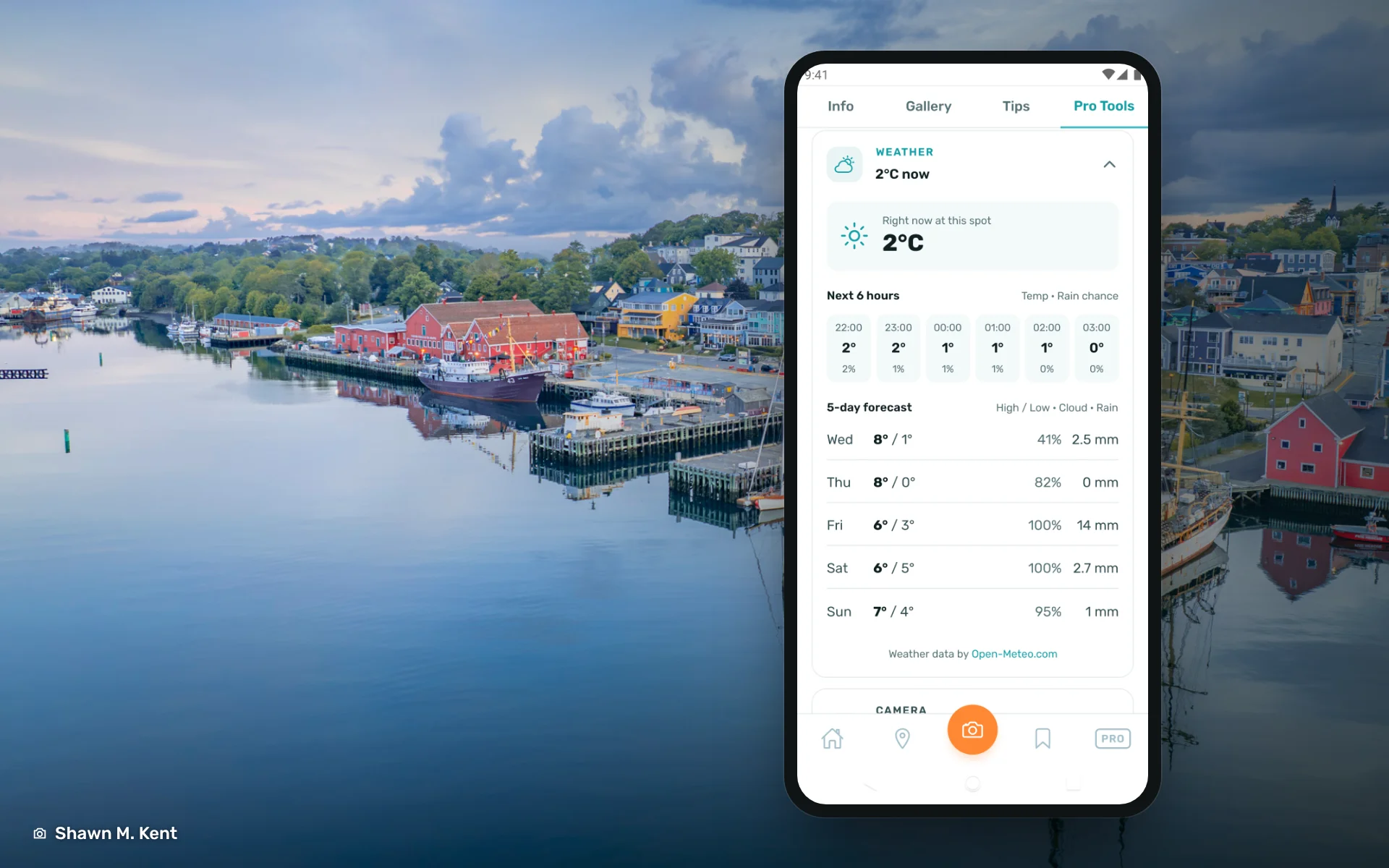
Current conditions at the spot, then hour by hour for the next six hours with temperature and rain chance, then a five-day forecast with the high and low, cloud cover and expected rain in millimetres. Cloud cover and rain are the two numbers that matter for a landscape shoot, and they are right there side by side. Weather data comes from Open-Meteo.
Camera Calculators
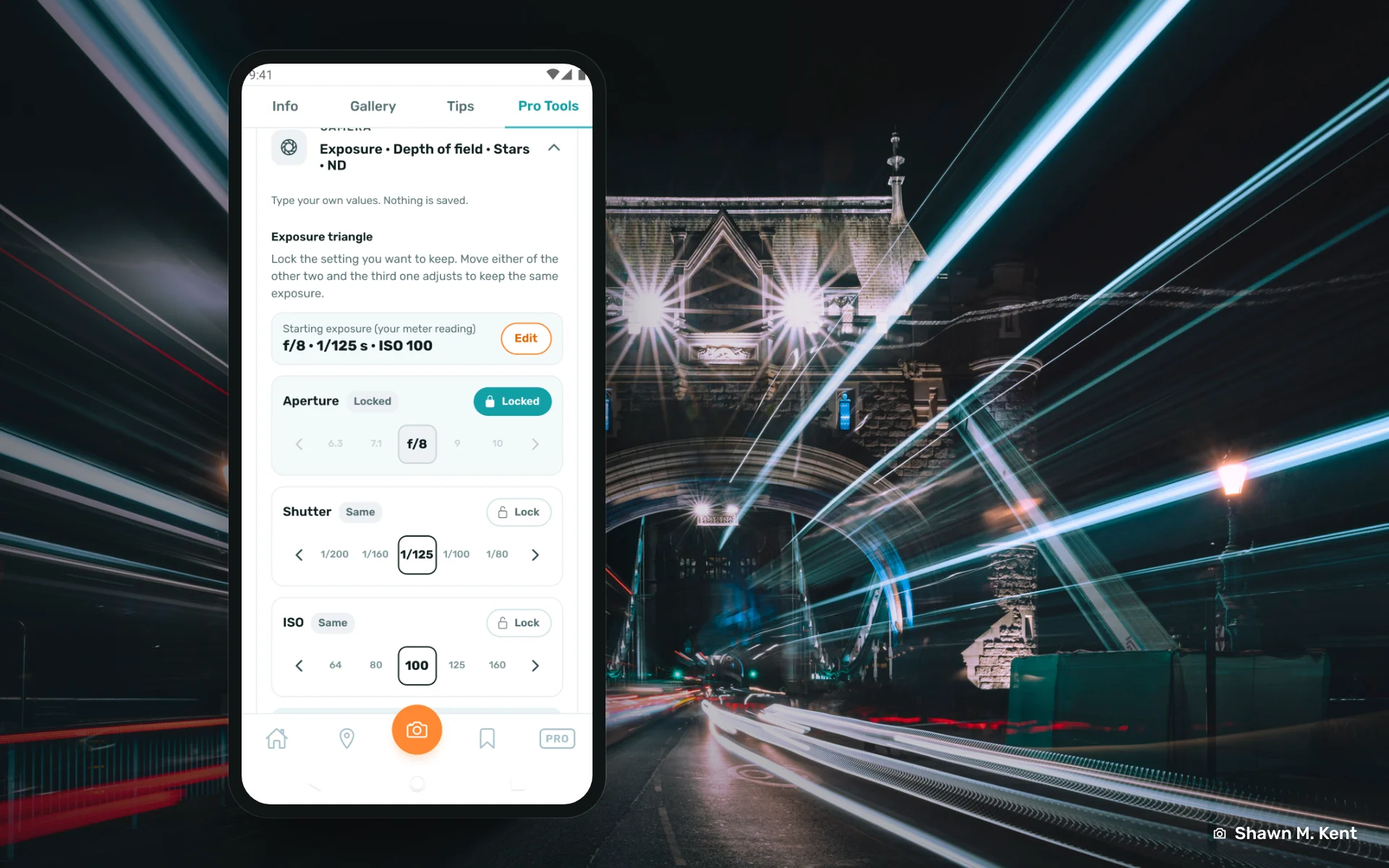
The camera card has four calculators. Nothing in them is saved; they are scratch pads for the field.
- Exposure triangle. Enter your meter reading, lock the setting you want to keep, and move either of the other two. The third adjusts to hold the same exposure. Lock aperture at f/8, drop the shutter two stops for motion blur, and it tells you the ISO.
- Depth of field. Focal length, aperture and focus distance in, near and far limits and hyperfocal distance out.
- Stars. The longest shutter speed before stars start to trail, for your focal length and sensor, assuming a typical 24-megapixel sensor. At 16 mm on full frame it is about 20 seconds.
- ND long exposure. Meter the scene without the filter, pick the filter strength (ND8, ND64 and so on), and get your shutter time with the filter on. This is the one I used for the Moulin Rouge and the Arc de Triomphe in Paris.
The Pro Tools Tab
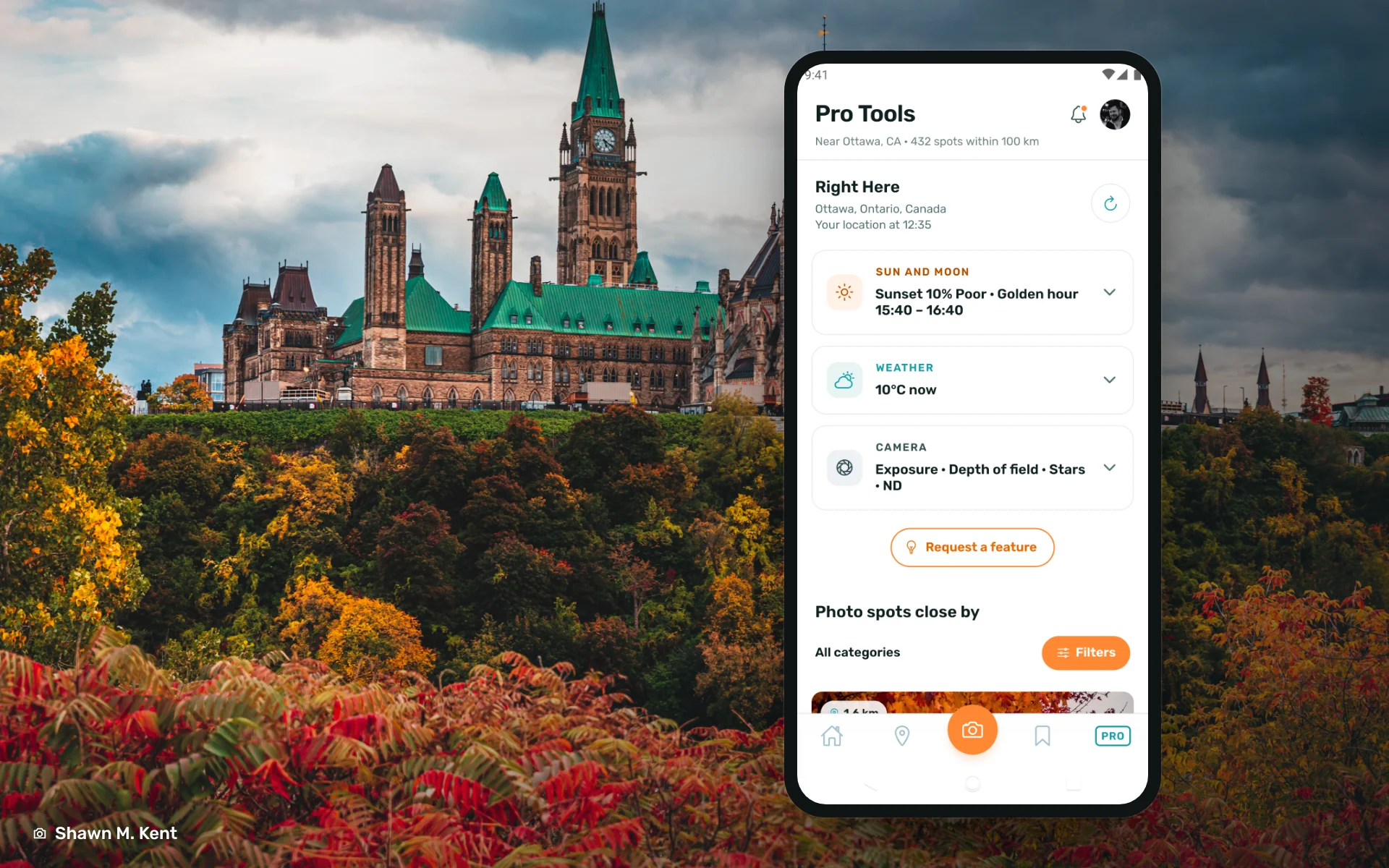
You do not need a spot to use any of this. The PRO button on the bottom bar opens Pro Tools for wherever you are standing right now: the sun and moon card, the weather and the camera calculators, all for your current location, with a refresh button when you move.
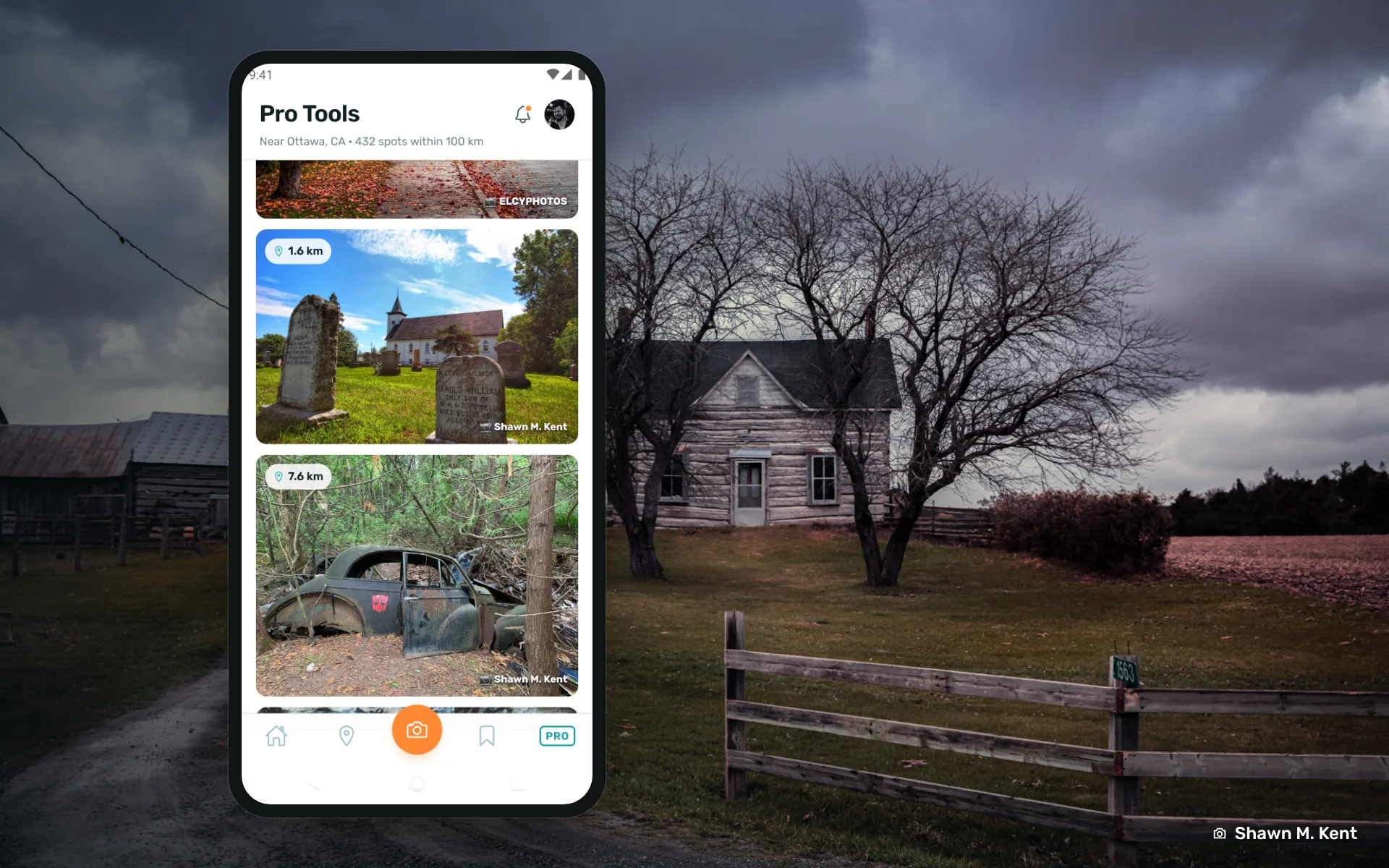
Under the tools is Photo spots close by, every spot within range sorted by distance, with a filter for category. Standing somewhere new with an hour of good light? Open the tab, check the sunset odds, and pick the nearest spot that faces the right way.
Free vs. Pro
PIXEO is free, and the parts that make it useful to the community stay free: the Photo Stream, the full map, every spot page with its Info, Gallery and Tips, comments and uploads. Free members see a few ads in the app.
PIXEO Pro removes the ads and unlocks the Pro Tools: the sky colour forecast, golden and blue hour, the compass, the moon and dark sky card, the weather, the camera calculators, bookmarks and the Pro Tools tab for where you stand. The PRO button and the Go Pro page show you exactly what is included, with live examples of the tools before you decide.
Pro is what pays for PIXEO. It is a two-person operation, and the subscriptions fund the servers, the weather data and the time to build things like this release. To everyone who has subscribed over the years: this update exists because of you.
Tell us what you think
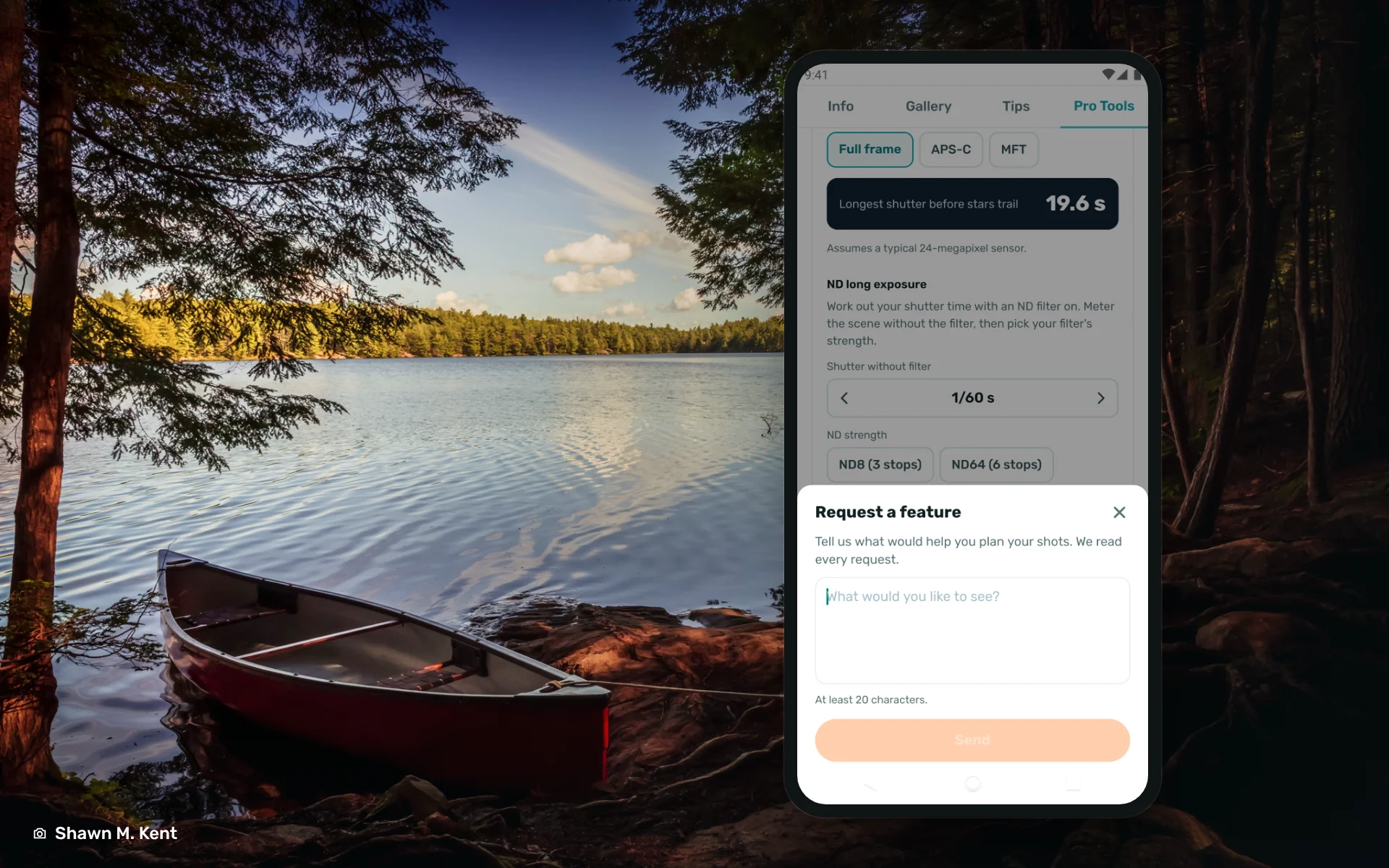
This is a brand new build, and we would rather hear about a problem from you than find it ourselves a month later. Two buttons are built in for exactly that. Request a feature sits at the bottom of the Pro Tools tab; tell us what would help you plan your shots and we read every one. Report a problem is in your account settings for anything broken or wrong.
When you first open the app it asks whether you want to share anonymous usage stats. Saying yes helps us see which features get used and where people get stuck. Saying no is fine too; the app works the same either way.
That is the tour. Grab the update, go find a spot near you, and leave the next photographer a tip. See you out there.
Which phones does the new app run on?
Any Android phone or tablet running Android 7 or newer. Get it free on Google Play.
Is there a new iPhone app?
It’s almost ready, with the same features. We’re letting the Android release settle first.
Do I need a new account?
No. Your PIXEO account works in the app and on pixeoapp.com. If you already have the app or use a Google account on the website, get the latest version from Google Play and sign in once.
I already pay for Pro. Do I need to subscribe again?
No. Sign in with the same account and your subscription comes back and works on the website as well. If it doesn't, contact us and we'll fix it.
Is PIXEO free?
Most of it is. The Photo Stream, the full map, every spot page with its Info, Gallery and Tips, comments and uploads are all free. Pro tools are the ones you have to pay for. To support the app and keep the lights on we have ads in the free version.
Why should I get Pro?
Pro removes the ads and unlocks the Pro Tools: the sky colour forecast, golden and blue hour times, the compass, sun and moon size in frame, the moon, dark sky and aurora card, the weather, the camera calculators, saving locations, a detailed profile on our website, and the Pro Tools tab for wherever you’re standing.
How do I add a spot?
Tap the orange camera button. Choose a photo, pin where you stood, then give the spot a name and a description. If your photo has GPS data, the pin goes in for you. You can also sign in at pixeoapp.com and upload from there. If you are editing with a desktop app, we highly recommend the latter.
How long does a review take?
Every new spot is reviewed by Lisette before it goes on the map. Reviews usually take 24 to 48 hours.
Can I add a photo to a spot that already exists?
Yes. Open the spot, go to the Gallery tab and tap Upload.
How do I make my shot the feature shot on a location?
We call this the "Hero" shot. Hero shots are the photos that have the most likes on a location. This makes every photo spot around the world a mini photo contest. So, if you can take a better shot, go for it!
Does PIXEO collect my data?
The first time you open the app, it asks whether you want to share anonymous usage stats. Yes helps us see which features get used; no is fine, and the app works the same either way.
How do I report a bug or ask for a feature?
Report a problem is in your account settings. Request a feature is at the bottom of the Pro Tools tab. We read every one.
Comments
Loading comments…